Get a transcript from any video
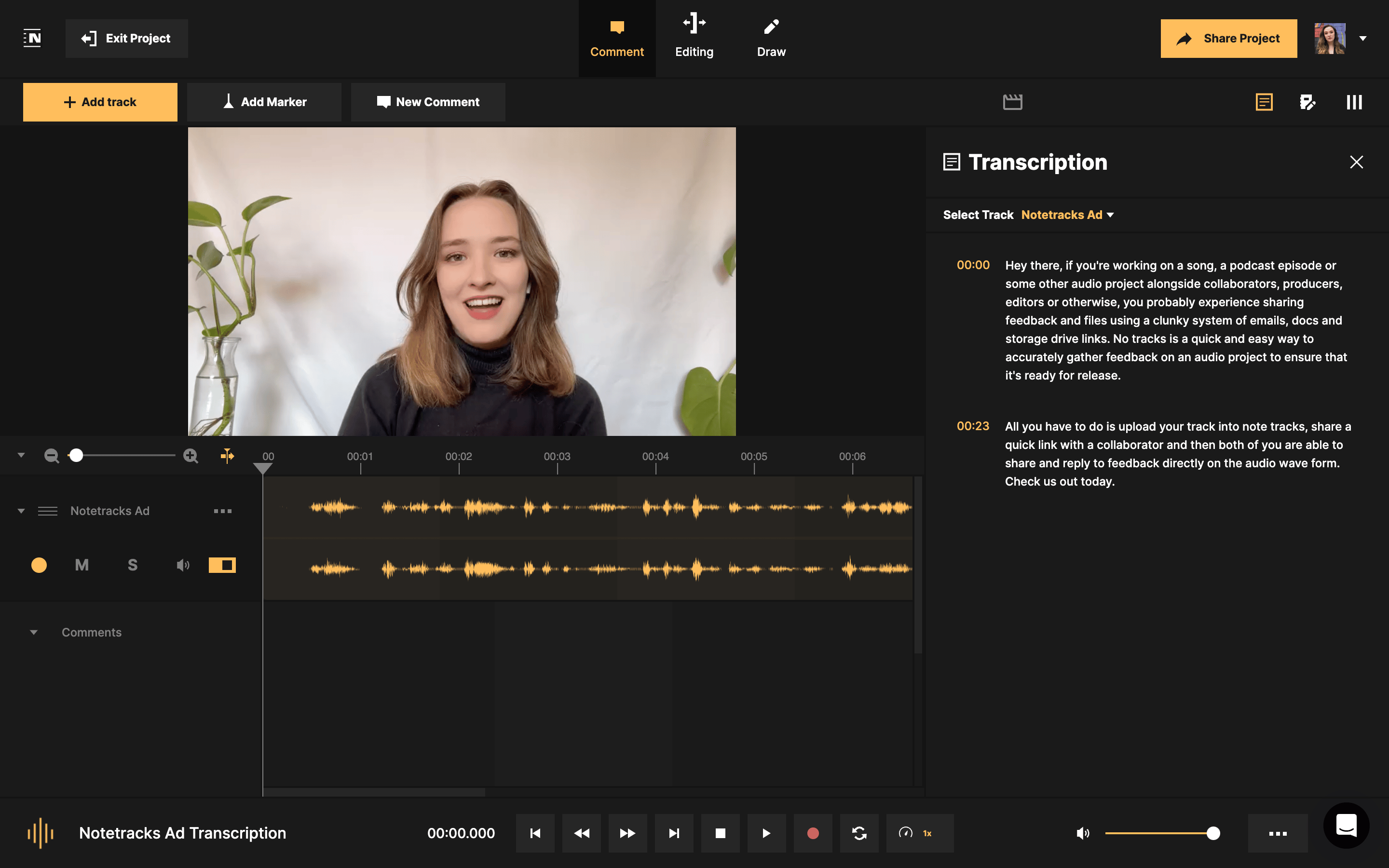
Upload an MP4 or MOV. Every line of the transcript is timecoded. Click any line to jump to that second of the video.
Start Free
7-day free trial. Transcription is included in the Pro and Team plans.
Upload an MP4 or MOV. Every line of the transcript is timecoded. Click any line to jump to that second of the video.
7-day free trial. Transcription is included in the Pro and Team plans.
Create a project, choose Video, and upload an MP4 or MOV file: a camera file, a phone video or a Zoom recording. You can also drag and drop it, or import it from Google Drive or Dropbox.
Open the Transcription pane and click Transcribe. Choose the language and the number of speakers, then confirm. When it's ready, every line carries a timestamp, and clicking a line plays the video from that point.
Share the project. Your team comments right on the transcript or on the timeline, replies in threads and marks notes resolved. Reviewers you share a link with don't need an account.
Most transcription tools hand you text and stop there. In Notetracks, the transcript sits next to the video and the waveform in the same project, so checking it and acting on it happen in one place.
In Notetracks, create a project, choose Video and upload the file, or import it from Google Drive or Dropbox. Open the Transcription pane, click Transcribe, and choose the language and the number of speakers. The transcript appears with a timestamp on every line.
Notetracks transcribes MP4 and MOV video files. It also transcribes audio in MP3 and WAV.
Accuracy depends mostly on the recording. Clear speech, one person talking at a time and little background noise give the best results. Crosstalk, music under dialogue and unusual names cause most errors. Setting the right language and number of speakers before you start helps. Treat an AI transcript as a first draft and check names and numbers against the video.
Yes. In Notetracks you can fix names and terms in the transcript, then copy the text for show notes, captions, an article or a script.
A transcript is the full text of what is said in a video, usually read on its own. Closed captions are short pieces of that text timed to appear on screen while the video plays, often with sound descriptions such as [music]. A timestamped transcript is a common starting point for writing captions.
Yes. In Notetracks, collaborators comment on the transcript itself or on the timeline, reply to each other and mark notes resolved when they're fixed. Anyone you invite can comment for free.
No. Anyone you share a Notetracks project with can watch or listen and leave timestamped comments without creating an account, and collaborators never pay to comment.
Yes. Transcription is included in the Pro and Team plans, and you can try any plan free for 7 days. See pricing.
Transcribe your next video
Upload an MP4 or MOV, get a timecoded transcript, and send one link for your team's notes.
Start Free


